Answer customers from Messages
Every WhatsApp and web chat lands in one inbox. Answer from any phone in the shop, hand a chat to a colleague, and let Bizic suggest a reply.
Before you start
Messages needs Customer messages switched on (turn features on) and your WhatsApp number linked (link WhatsApp). Chats from your online shop arrive here too.
Open the inbox
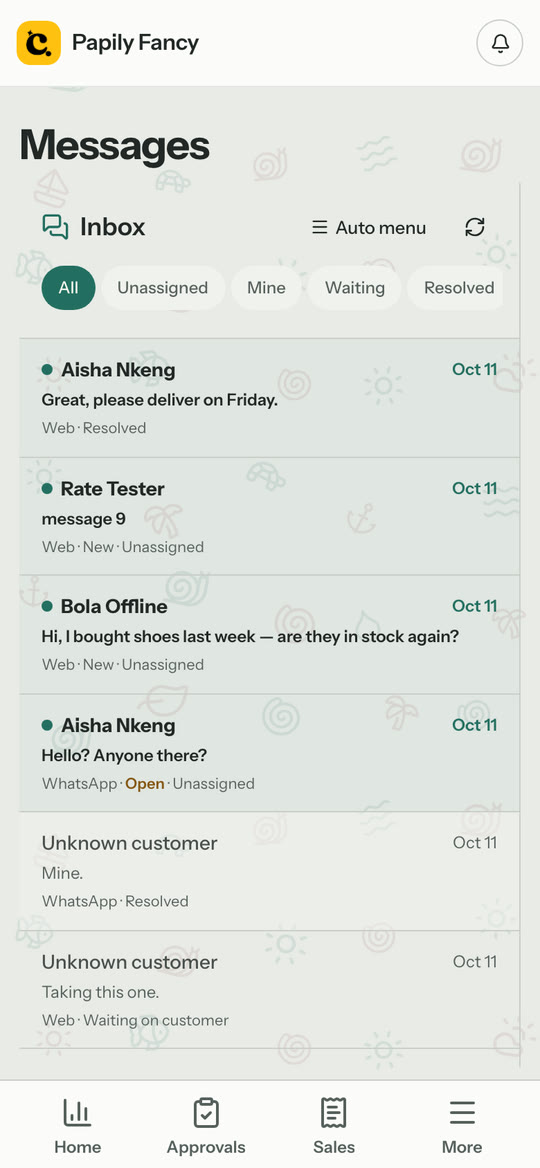
Open More and tap Messages. Home also says how many customers are waiting for a reply; tap that line to come straight here.
Opening Messages The pills along the top sort your chats: - All: everything - Unassigned: nobody has taken it yet - Mine: chats handed to you - Waiting: you asked something and the customer hasn't answered - Resolved: finished
Someone new who isn't in your customers yet? Tap ⋯ in their chat, then Make customer.
Reply
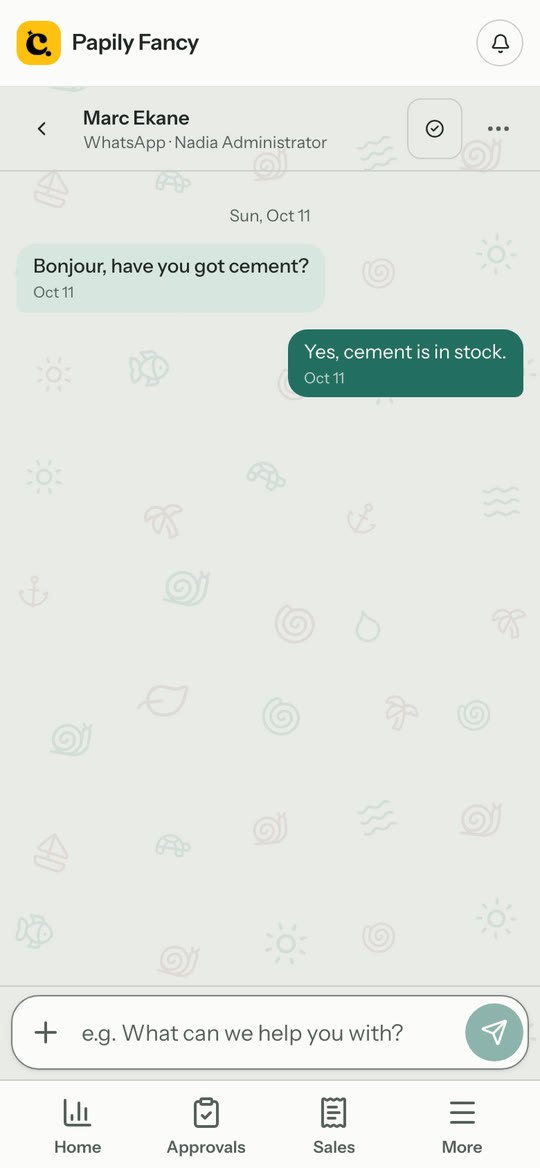
Tap a chat. On a phone it fills the screen; tap ‹ at the top to go back to the inbox. The whole conversation is there, with any order or booking it's about.
Opening a chat Type in the box at the bottom and tap send. It goes to the customer on WhatsApp, from your shop's number. Changed your mind? Tap × in the box to clear the whole reply at once.
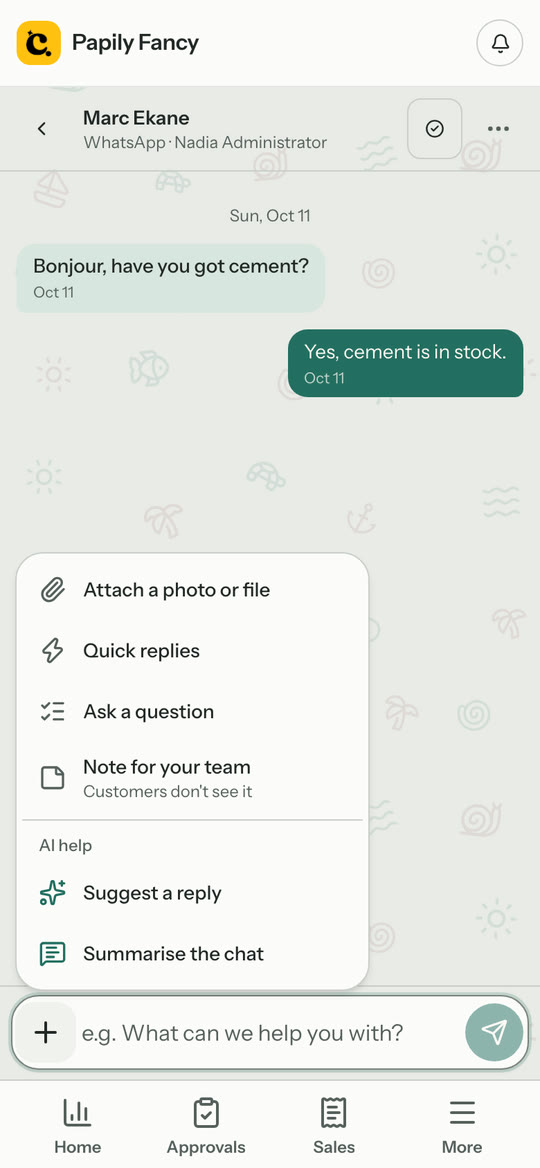
A chat, ready to reply Tap + for more ways to reply: - Quick replies: answers you send often, like your opening hours or delivery fees. Tap Add to save one, then tap it to drop it into any chat. - Ask a question: numbered options the customer picks from. With AI on it opens already filled in from the chat, with what Bizic answers when each option is picked; change anything, or tap Another idea. - Attach a photo or file: a product photo or a price list - Note for your team: a note only your staff see - Help me reply and Summarise the chat: Bizic's AI writes your next message, or sums up a long chat. You check it before it's sent.
More ways to reply 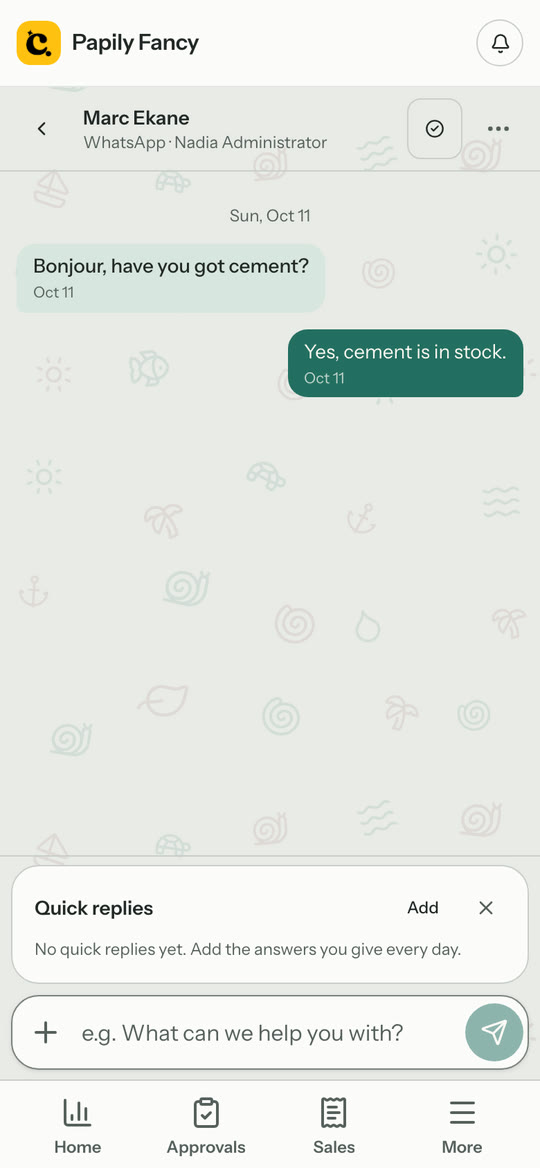
Quick replies
Let Bizic help you reply
With AI switched on, an empty reply box shows a sparkle. Tap it to open Help me reply, then tap what you want:
Best reply: Bizic picks: an answer, or a short question when it needs the customer to choose something first.
Answer: a reply to what the customer just asked.
Ask: a question with numbered options the customer picks from, like a size, a colour, or delivery or pickup.
Follow up: a friendly nudge when the customer has gone quiet.
The draft lands in the box. Change anything you like, then tap send. Not right? Tap another pill, or × to clear it.
Bizic reads the last few messages and what your business sells (your products, services, prices, shops and opening hours), plus a short note of what was said before. It never makes up prices or promises, and nothing goes out until you tap send.
When it writes a question, each option shows what Bizic will answer if the customer picks it, for example "Green it is! Delivery or pickup?", so the chat keeps moving towards an order. Tap × next to an option to remove it, or untick Bizic answers each pick for you to answer yourself.
Hand it over or finish
Someone else should answer? Tap ⋯ at the top of the chat and choose Transfer to someone.
Need a deposit? Tap ⋯, then Save for follow-up, then Send a payment link. It makes a mobile money link to paste into your reply. The order shows as paid when the money arrives.
Done? Tap the tick at the top of the chat to resolve it. If the customer writes again, the chat comes back to the inbox.
Last change, 24 November 2026: Ask a question comes filled in from the chat again, with what Bizic answers for each option.
Still stuck?
Tell us what you were trying to do. A real person reads every message.